Students can create an account on Wayground by visiting www.wayground.com and clicking on the 'Sign up' button. They will then see an option to 'Continue with Email'.
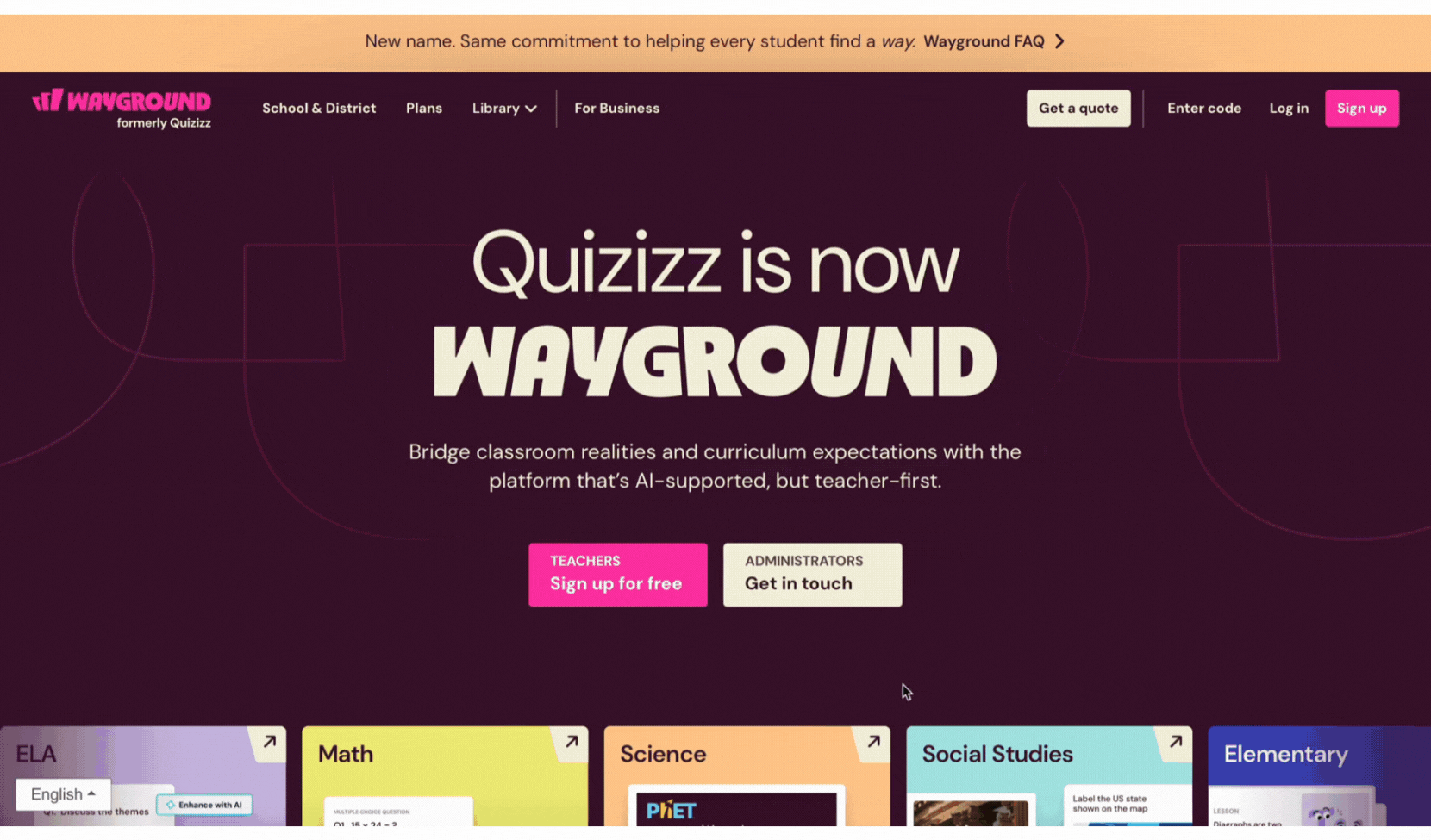
Depending on the country the student is signing up from, they may see an additional 'Others' (SSO) option.
If your school has enabled Single Sign-On with Clever, ClassLink, or others, students can click on them to sign up, which will directly take them to the Wayground platform. The same behavior will occur if students log in using LMSs like Canvas or Schoology.
Students signing up through Clever or ClassLink SSO are not asked to enter their age or parent/guardian’s email.
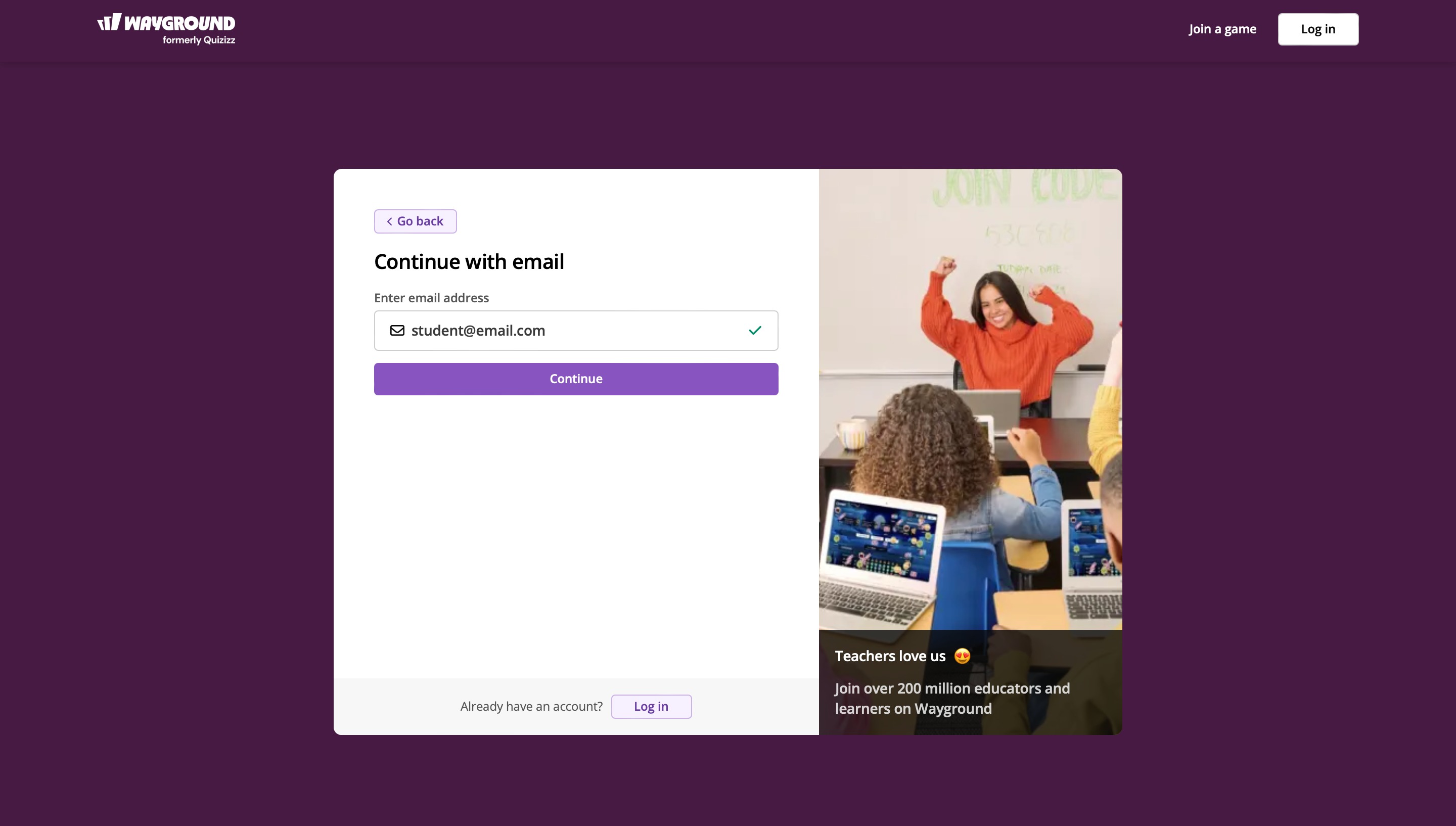
If they don't use any of the above methods, they can click on 'Continue with Email'. Then, they must enter their email address in the input field and click on 'Continue'.
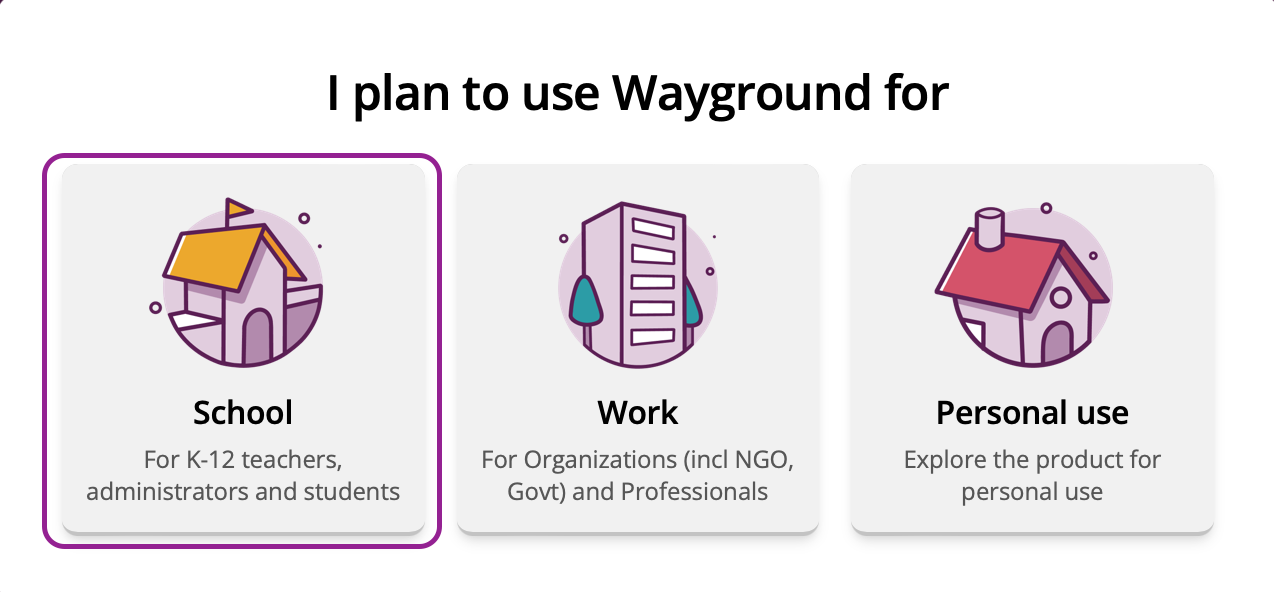
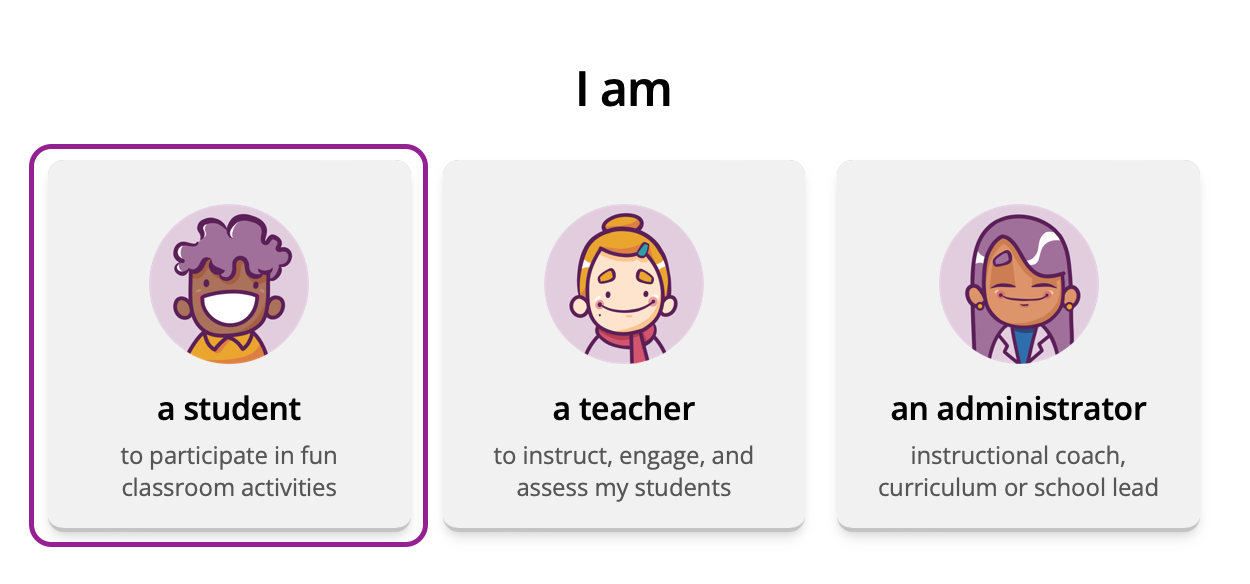
Next, they must click on the 'School' option and select the student profile in the following window.
They can click on the dropdown menu to select their age. Wayground asks for this information to comply with the Children's Online Privacy Protection Act (COPPA), as we're required to take extra precautions with the personal data of students under 13 years of age.
If the student is below 13 years of age, they will be prompted to enter their parent's or guardian's email address (this information will be used in case a student requests a password reset; new password details will then be sent to the parent's / guardian's email ID). They will also be asked to create a username and password.
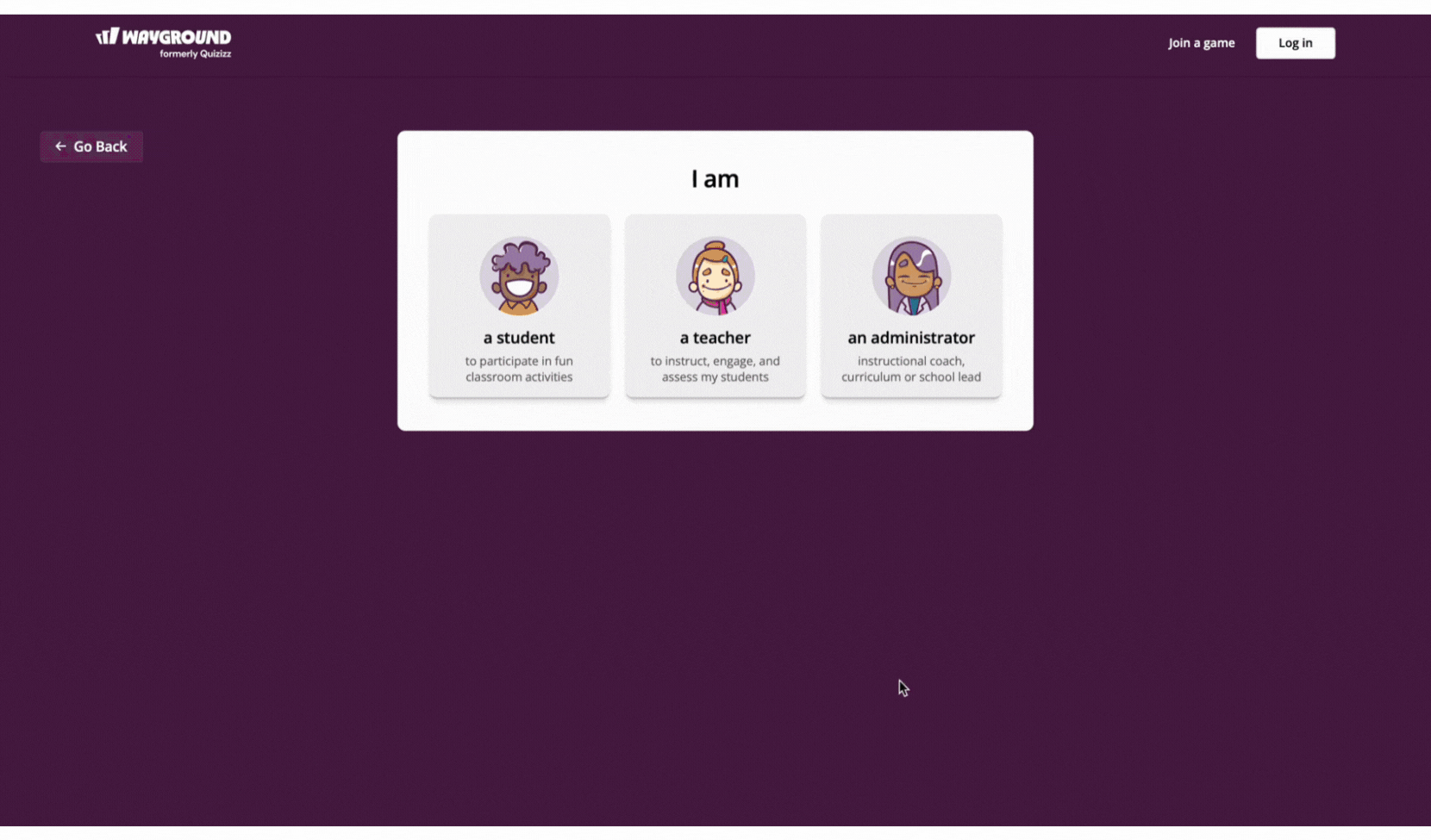
If the student is 13 or above, they will be prompted to enter their title (optional), first name, last name, and password.
Once these steps are complete, the student will be directed to their Join page, and their account will be ready to use!
Note:
Students under 13 signing up with Google, Microsoft, or Apple SSO will need to enter their age and parent’s/ guardian’s email address. Students signing up through Clever or ClassLink SSO are not asked to enter their age or parent/guardian’s email.
Was this article helpful?
That’s Great!
Thank you for your feedback
Sorry! We couldn't be helpful
Thank you for your feedback
Feedback sent
We appreciate your effort and will try to fix the article